When a store has several thousand products, and prices and stock levels change every week, editing them through the OpenCart admin means opening each product card separately. Most owners already keep their price lists in spreadsheets: their own, supplier files, and ones shared with managers. The module "Data Exchange With Google Spreadsheets" from developer IHOR1989 connects these spreadsheets to the store: it pulls prices, stock levels, statuses and promotions from Google Sheets and exports the store's current data back to the spreadsheet.
Below we go through all the settings tabs and look at what to consider before buying.
General settings: status, CRON and Google access
The first tab enables the module itself and automatic scheduled runs. Import and export via CRON are enabled separately, so you can, for example, update prices every hour and run exports manually. For each direction, the module generates a CRON URL and a ready-made wget command, which you just need to paste into the scheduler on your hosting.
At the bottom are two access fields: the API key for import and the service account JSON for export. After saving, the module does not display them: an empty field means the saved key remains unchanged.
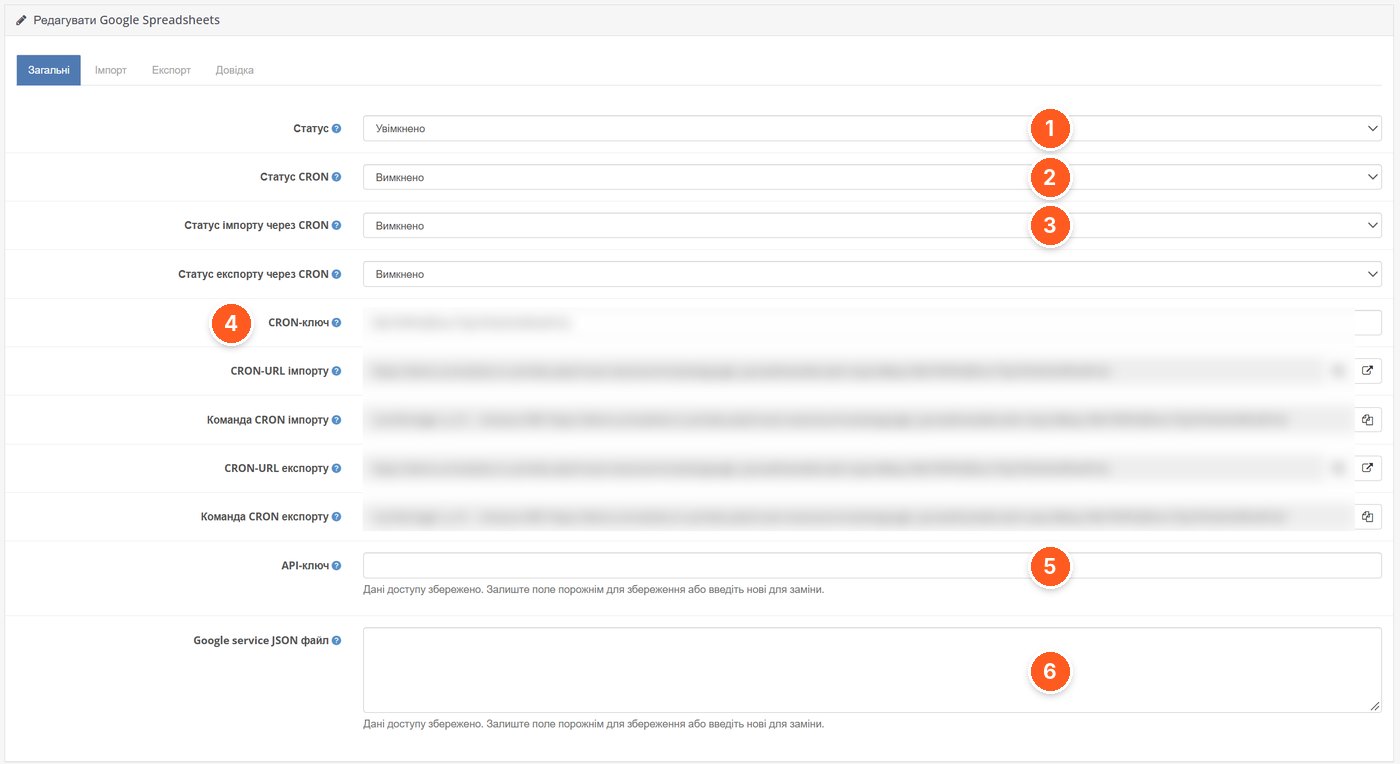
- Status. General module enablement.
- CRON status. Allows scheduled runs.
- Import and export via CRON. Separate switches for each direction.
- CRON key, URL and commands. The key protects the links from third-party runs; the wget commands are ready for the scheduler.
- API key. Google Cloud key with the Google Sheets API enabled, required for import.
- Google service JSON file. The full service account JSON, required for export.
Import: a profile for each price list
Import is built on profiles: a separate profile for each price list or sheet. In a profile you set the spreadsheet ID, the exact sheet name, and the row where the data starts. Then you choose which field to search for products by in the store (product_id, model, sku, upc, ean, jan, isbn or mpn) and in which spreadsheet column it is located.
Each field is enabled separately with a column number: price, quantity, sort order, status, Noindex. Columns are counted from zero (A = 0, B = 1), as the hint at the top of the tab reminds you. Empty cells do not change the product, so you can update only prices and leave everything else alone. Import does not create new products; it only updates existing ones.
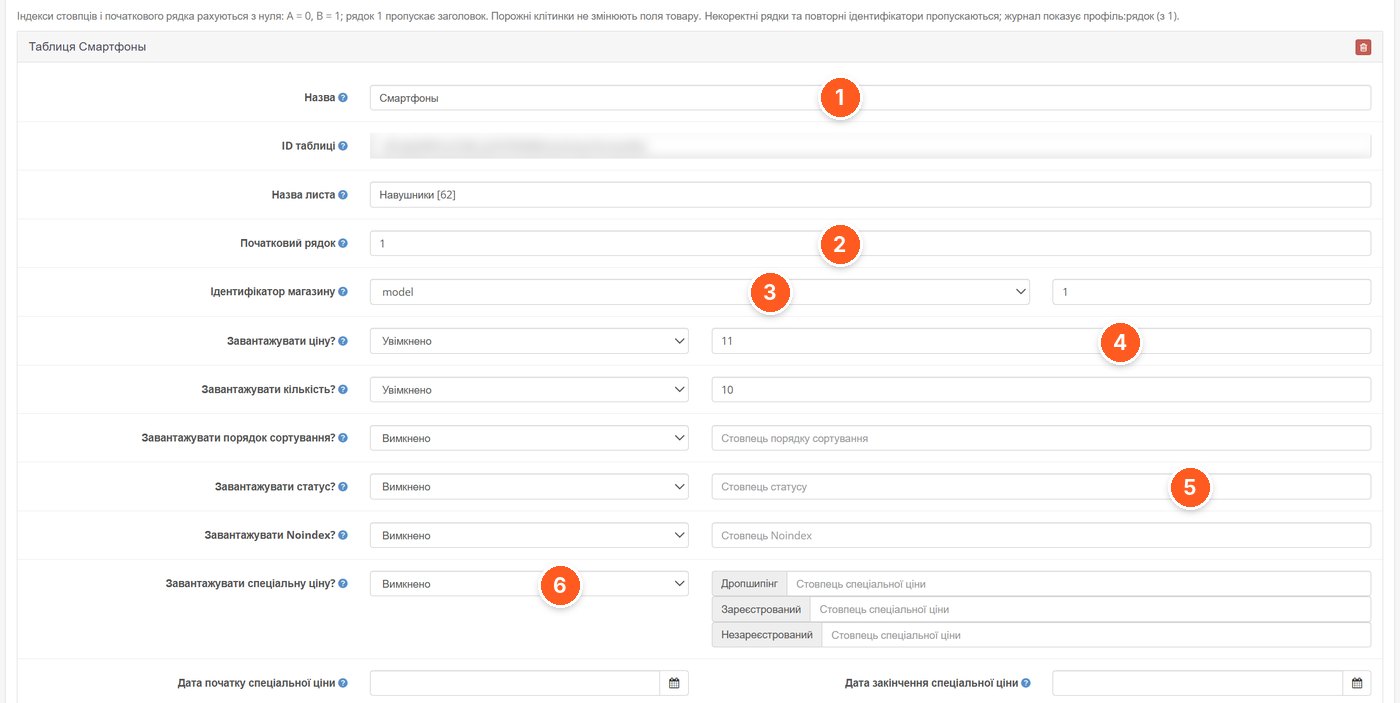
- Name, spreadsheet ID, sheet name. Where to take data from; the sheet name must exactly match the tab in Google.
- Starting row. Lets you skip the table header.
- Store identifier. The product field for matching and the column number with it in the spreadsheet.
- Price and quantity. A switch and column number for each field.
- Status, Noindex, sorting. The same "enable + column" pairs.
- Special price. Promotional prices separately for each customer group, with start and end dates.
Discounts, quantity substitutes and multiple price lists
Further down the profile are the same customer groups for quantity discounts, also with validity dates. A useful field is "Quantity substitutes": if a supplier writes not numbers but "in stock" or "out of stock" in the price list, you set a mapping such as у наявності=10|немає=0, and the module will convert the text into a stock level itself. Unknown text values are discarded rather than zeroing out the product.
A separate switch decides what to do with empty or zero promotion cells: keep the active promotions or delete them. The "Add new" button creates another profile, so the price lists of several suppliers can live side by side and be updated in a single run.
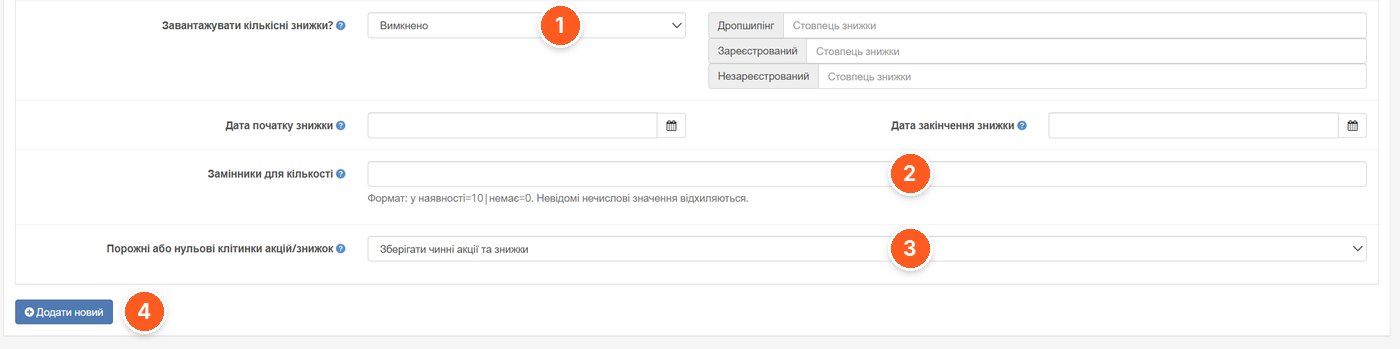
- Quantity discounts. Discount columns for each customer group.
- Quantity substitutes. Conversion of text stock values into numbers.
- Empty or zero cells. Whether to keep or delete already matched promotions and discounts.
- Add new. One more profile for another price list or sheet.
If supplier price lists come not in Google Sheets but as Excel or XML files, see our review of the automatic price list processing module.
Export: store products to a Google Sheet
Export writes to your own spreadsheet on behalf of a service account. For each category, the module creates a separate managed sheet with the category ID in its name and leaves other sheets untouched. A new sheet appears only after a complete write, so colleagues will not see a half-filled spreadsheet.
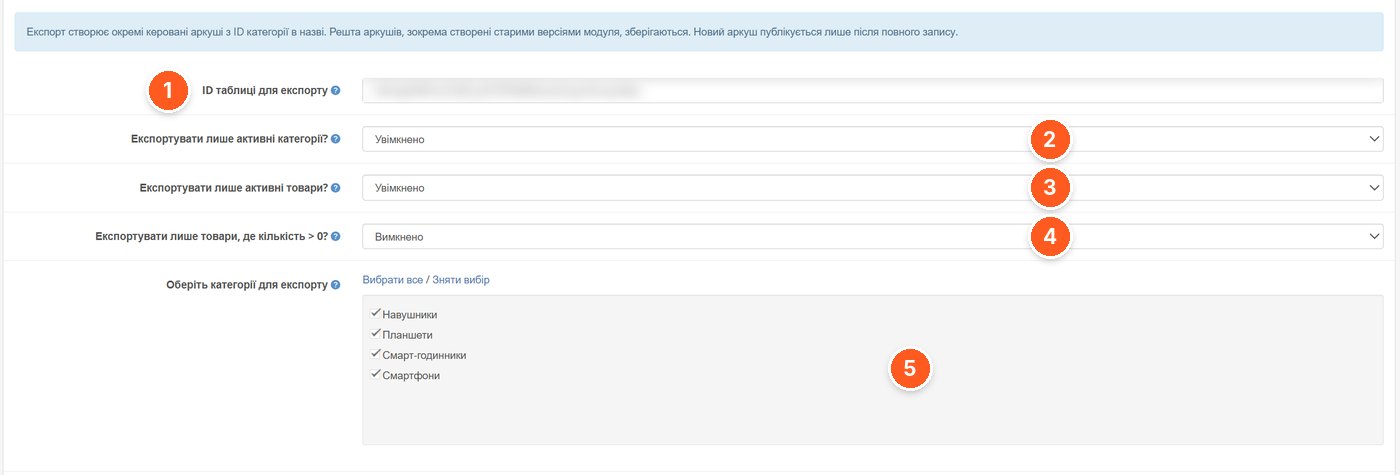
- Spreadsheet ID for export. The spreadsheet to which the service account has been granted the "Editor" role.
- Active categories only. Skips disabled categories.
- Active products only. Skips disabled products.
- Products with quantity greater than 0 only. Convenient when you need a spreadsheet of only what is in stock.
- Categories for export. Selective export with "Select all" and "Clear selection" buttons.
Next, you choose which identifiers go into the spreadsheet and for which customer groups to export promotional prices. The result is a ready spreadsheet that is convenient to edit and then upload back through import.
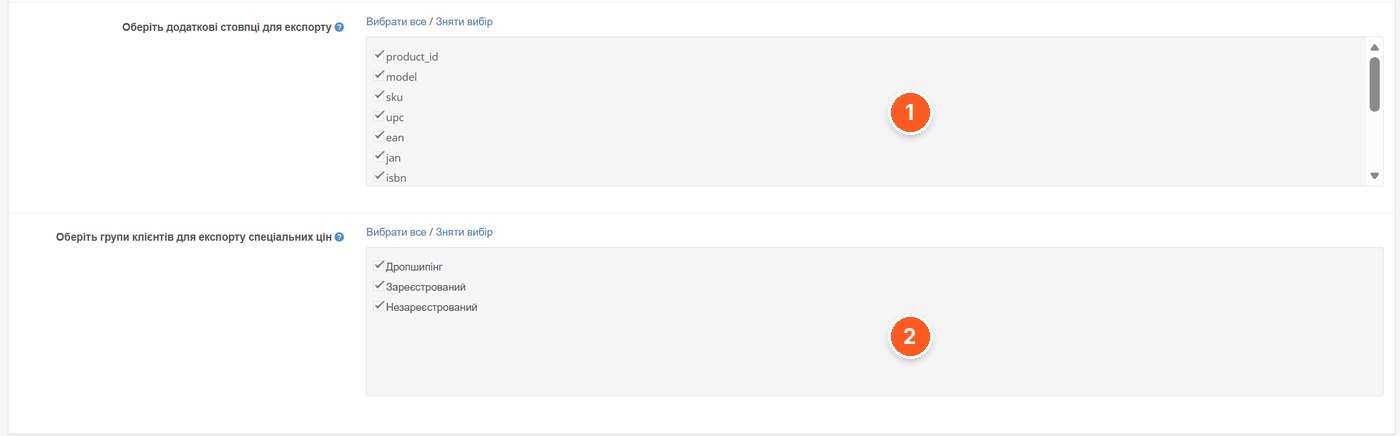
- Additional columns. product_id, model, sku, upc, ean, jan, isbn, mpn as desired.
- Customer groups for promotional prices. For each marked group, its own special price is exported.
Help right inside the module
Most of the time at the start will be spent not on the module but on Google Cloud: creating a project, enabling the Sheets API, and obtaining a key and a service account. The developer has placed a step-by-step guide on a separate tab, with links to the relevant Google Cloud Console pages. It also describes manual runs with "Stop" and "Continue" buttons, batch processing without reloading the page, and an error log showing the profile and row number with the problem.
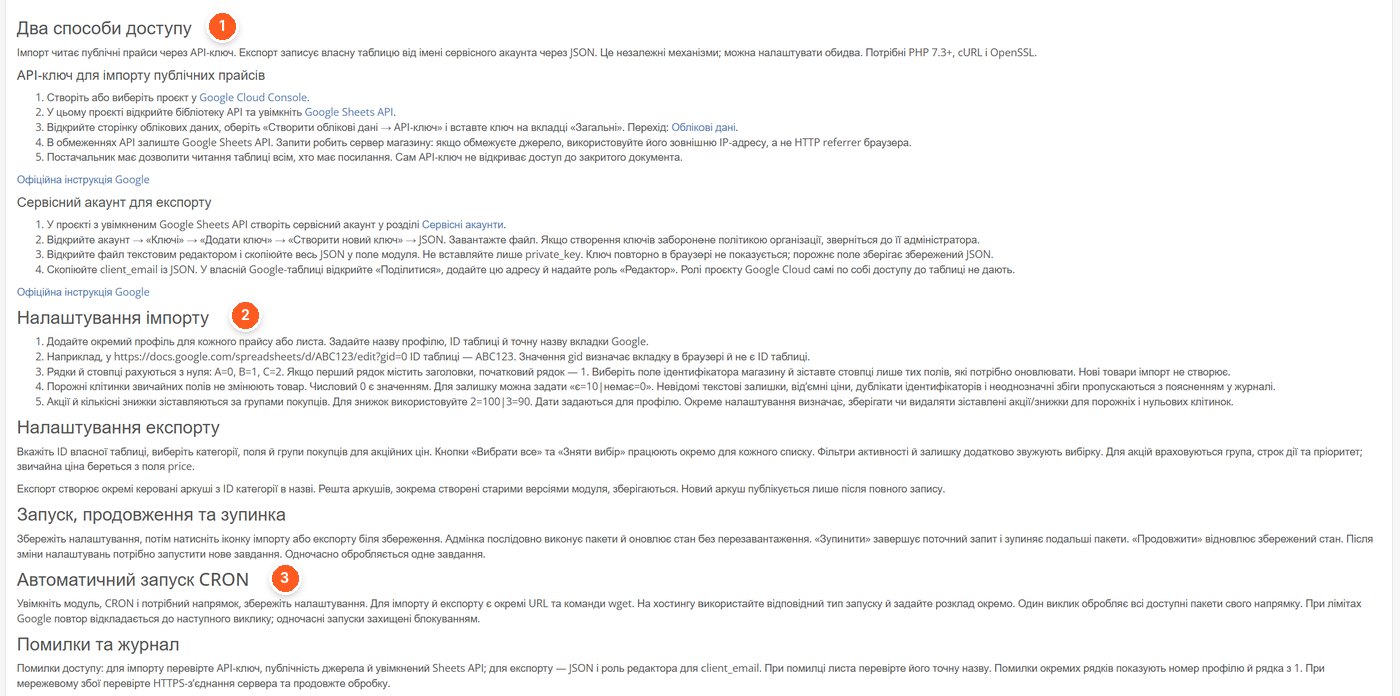
- Two access methods. API key for importing public price lists and a service account for export.
- Import settings. How to find the spreadsheet ID in the link and how rows and columns are counted.
- Automatic CRON runs. Separate schedules for import and export, protection against simultaneous runs.
What to consider before buying
- Works on OpenCart 3.0.0–3.0.5. ionCube is not required, and the module does not contact the developer's server.
- Requires PHP 7.3+, cURL and OpenSSL, and a Google Cloud account with the Google Sheets API enabled.
- Import via API key reads only spreadsheets that are open to anyone with the link. If a supplier keeps the price list private, ask them to open read access.
- For export, the service account must be given the "Editor" role in your spreadsheet; project roles in Google Cloud do not grant access to it.
- The module updates existing products and does not create new ones. To populate a catalog from scratch, you need a different tool.
- Scheduled operation requires CRON on your hosting. When Google limits are hit, the module postpones the retry until the next run.
- License covers one domain together with its subdomain.
Who it suits
Stores that already keep prices and stock levels in Google Sheets, or where suppliers share price lists via Google. Teams where a manager needs to edit prices and promotions but does not want to give admin access. Those who need promotions for different customer groups, for example separate prices for dropshippers.
It will not suit you if price lists arrive only as files or through a supplier's API, or if you need to automatically create new products with descriptions and photos.
Data Exchange With Google Spreadsheets by IHOR1989 on the OpenCart Code marketplace. Questions about setup can be asked to the developer directly on the module page.