Easyphoto — photo upload and sorting by drag and drop
Easyphoto — photo upload and sorting by drag and drop
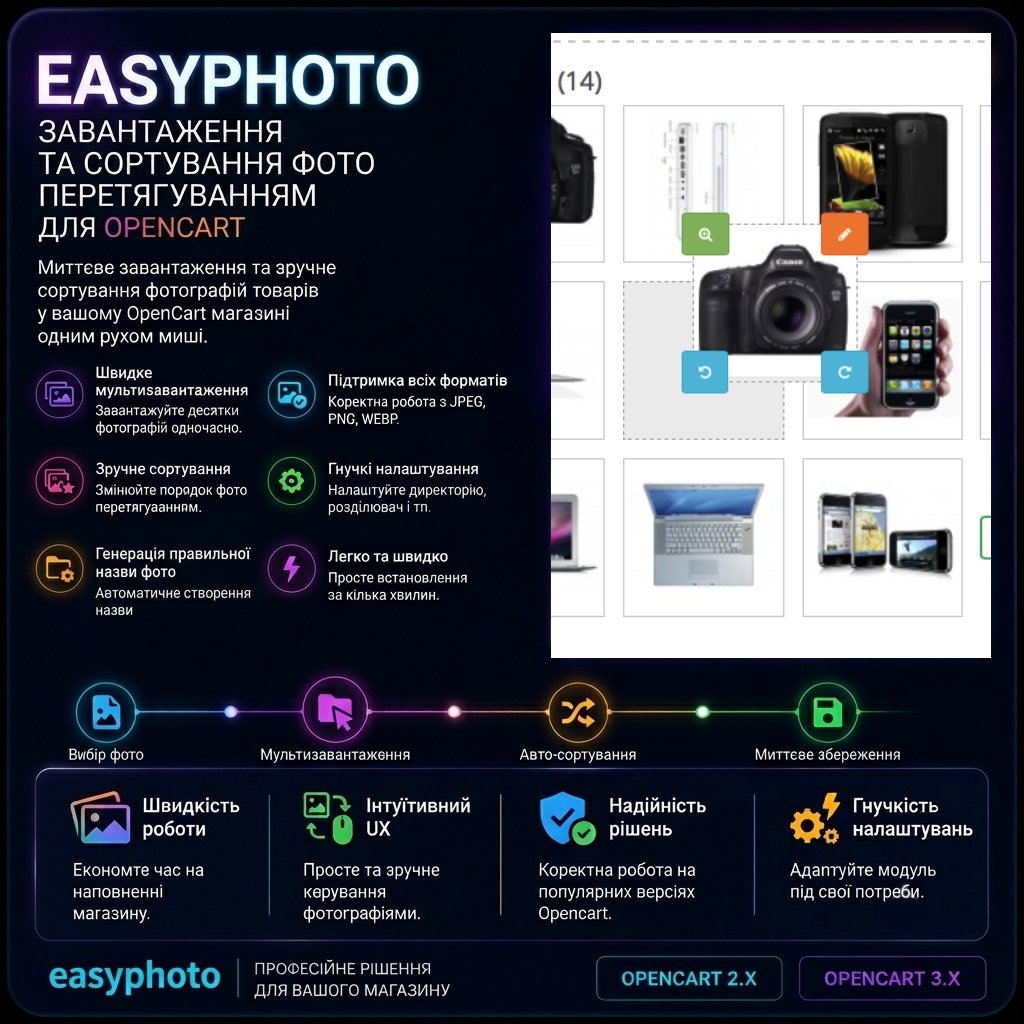
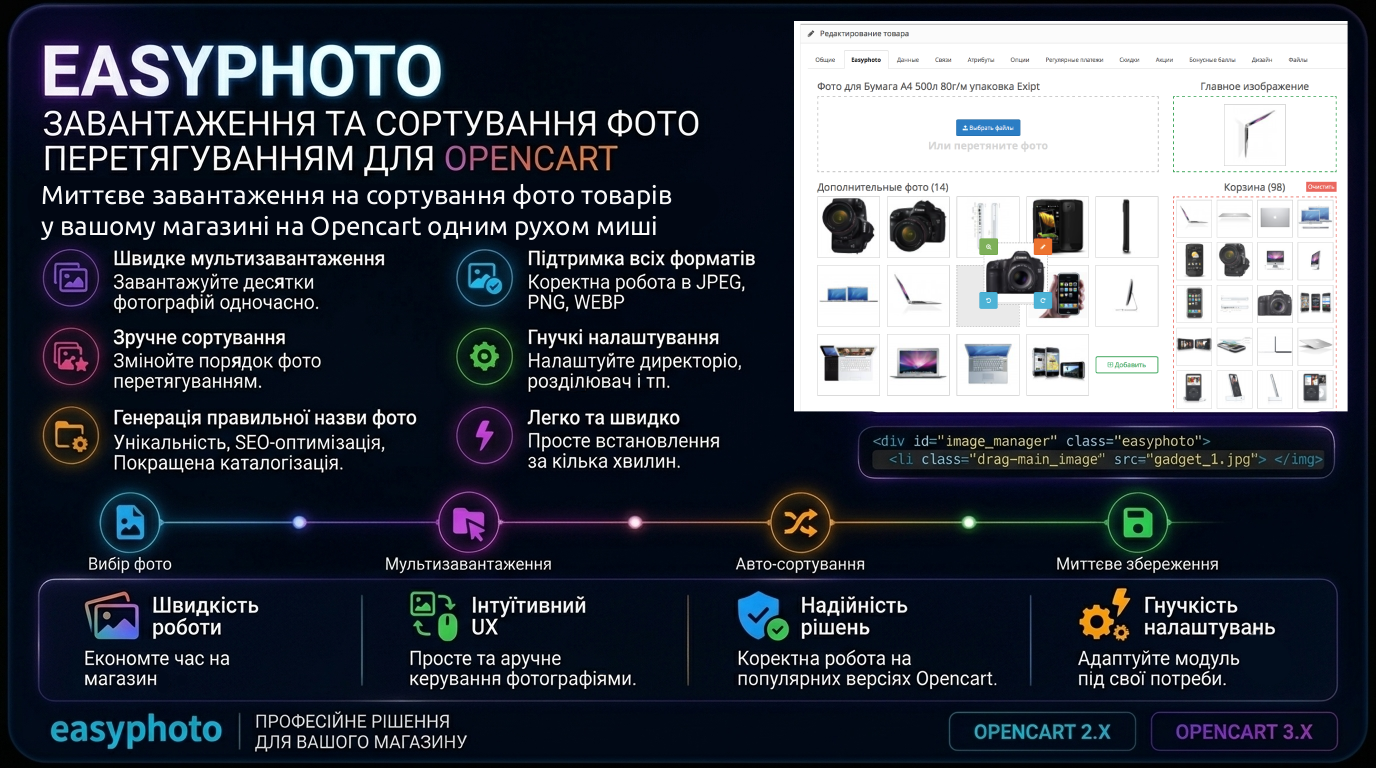
Multi-photo upload in 2 clicks directly from your computer, bypassing the standard file manager. Convenient and intuitive interface — photo selection/drag-and-drop field, main image field, additional photos field, and cart field
 Exploits
Promo code will be applied automatically when you add the product to cart
Optional — you can enter the domain later from your account.
Description
The module works on all versions and builds of OpenCart/OcStore 2.x - 3.x.
We all know that filling an online store on OpenCart is extremely inconvenient due to adding photos. First in the image manager, then searching among files and selecting — all this for just one image. And if there are 10 or 20 images...? o_O
In quality stores, the more photos, the better for the buyer, so you will have something to work with. This module does exactly that — it simplifies the process.
The Easyphoto module allows you to upload photos, bypassing the file manager, directly from your computer, with just one click and selecting all files. (You can also simply drag them into the browser).
You can sort product photos by simple dragging.
Easyphoto module features
- Multi-upload photos in 2 clicks directly from your computer, bypassing the standard file manager.
- Convenient and intuitive interface — photo selection/drag field, main image field, additional photos field and "trash" field.
- Ability to upload by dragging into the browser (Drag & Drop).
- Ability to upload photos from browser to browser (possible nuances with some browsers).
- Ability to designate a folder for uploading. Final photos are uploaded to a folder with the product ID, which is very convenient and logical. Files are stored at image/catalog/easyphoto/123/..., where easyphoto is the folder that can be configured for uploading, 123 is the product ID, and all images are stored in this folder.
- Automatic SEO photo name — transliteration from the product name. The language can be selected in the settings. For example, the product "Canon-ip2900 Printer" will have photo names printer-canon-ip-2900-1.jpg, printer-canon-ip-2900-2.jpg, printer-canon-ip-2900-3.jpg, which is very useful for SEO.
- All special characters and extra characters are trimmed, with complete cleanup from unnecessary elements. This can be configured, but it's better for the name to come from the product name.
- Ability to specify a separator between the photo name and serial number.
- You can select any product field from which the image name will be generated.
- Setting the main photo is done by simple mouse dragging. Upload all photos — drag one to the main one, and you're done.
- If you configure auto-select of the first photo, the main photo will be assigned automatically.
- Ability to add photos from previously uploaded ones. There is a button to select photos from the file manager.
- Sorting of uploaded photos by simple mouse dragging.
- There is a "trash" section — a necessary tool to facilitate working with product photos. When you've uploaded all pictures, selected the main one, sorted them, returned them, etc., and some photos turned out to be unnecessary — you simply drag them to the trash. The file remains on the server but is not linked to the product. From the trash, it can be restored or deleted permanently. There is also a tool to completely empty the trash.
- When hovering over an image, you can enlarge the photo, replace it with another or rotate it clockwise/counterclockwise. When scrolling, the original remains and can be returned to the site. Everything is very convenient and well thought out.
- The module creates its own tab in the product editing form, where the photo management interface is located.
- Easyphoto does not replace store files and does not affect the website's operation, only in the admin.
- Integration into the admin is done through the OCMOD modifier.
- Localization is available in Ukrainian, Russian and English.
- There are service functions: photo renaming and removal of unnecessary images.
How to install (update) Easyphoto
- If the module already exists in the old version — delete the modifier.
- Go to module installation — select the module file.
- After installation, refresh the modifier cache.
- Go to modules — install Easyphoto.
- Go to Easyphoto and configure the module.
Specifications
Features
Technical Details
- OpenCart Version
- 2.0.3 2.1.0 2.2.0 2.3.0 3.0.0 3.0.1 3.0.2 3.0.3 3.0.4 3.0.5
- Module Localization
- Ukrainian, English, Russian
- Support Language
- Ukrainian, English, Russian
- Activation Method
- Automatic activation
- Ioncube Loader
- No (not required)
- Developer Server Connection
- Yes
- If Developer Server Unavailable
- Extension works
- PHP Version
- 5.6 7.0 7.1 7.2 7.3 7.4 8.0 8.1 8.2 8.3 8.4
- Compatible with Templates
- All
Reviews (0)
Please log in to leave a review.
Log inNo reviews yet
Be the first to review this product!
Questions (0)
Please log in to ask a question.
Log inNo questions yet
Be the first to ask a question about this product!
Changelog
- New version
Related Modules

UniXML - module for export to XML format + import from XML
A tool that will allow you to increase online store sales through integration with marketplaces (upload and update products there) Extensive import functionality that allows you to import and update products from XML (YML) to Opencart from suppliers

MicrodataPro - micromarkup for an online store
For just $15 you get the friendliness and transparency of an online store for search engines. This will set your site apart from your competitors! The module allows you to make a good snippet in search engine results. Which significantly increases click-through rates, and as a result, sales.
Redirector 301 - a super simple and fast module for creating 301 redirects
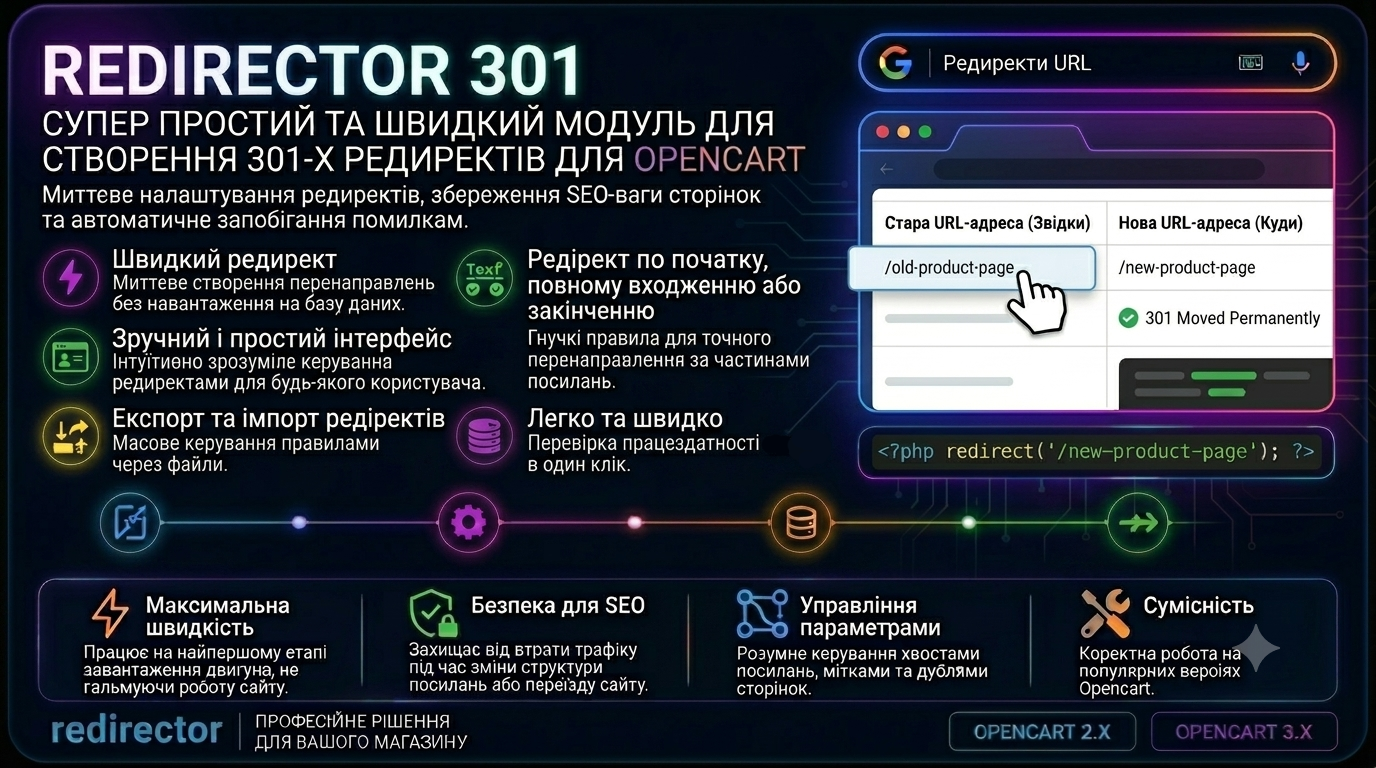
301 Redirector – this is a module for creating redirects in Opencart in just a few seconds! You can create redirects from exact link matching, to the beginning, to the end, or to the beginning and end of the link - very convenient! The module has import, export, deletion, and redirect testing