Orders in the store exist, but there are no emails about them. The customer completed a purchase and is waiting for confirmation, the manager finds out about a new order only when they go into the admin panel themselves, and the contact form has been silent for a month with no one noticing. This is what a store looks like when email was left "as it was after installation."
The problem is that after installation, OpenCart sends emails through the PHP function mail(). Sometimes it even works. But that very "sometimes" is the diagnosis: some emails arrive, some end up in spam, some disappear without a trace, and it's impossible to understand the pattern. Below we'll figure out how to switch your store to SMTP and why this isn't a whim, but basic hygiene.
Where settings live
Admin → System → Settings, the store editing button, "Email" tab. In OpenCart 3.x the main field is called "Mail Engine", in 2.x — "Mail Protocol". The essence is the same: two options, Mail and SMTP.
Nearby on the same tab there's another thing often forgotten: the notifications section. There you set an additional address (or several, comma-separated) where copies of service emails go, and checkboxes — what exactly to notify about: new orders, registrations, reviews. If a manager isn't receiving emails about orders, half the time the reason is banal: the address simply wasn't entered there.
Another address that participates in the process lives on the "Store" tab — it's the store's main E-Mail. It's the one that gets inserted in the "From" field. Remember this fact, it will come in handy in the spam section.
Why Mail mode is a lottery
The mail() function hands the email to the server's local mail agent (sendmail, exim), and then it figures things out with the world on its own. Without authentication, without guarantees, often from an IP address where hundreds of other sites on the same server send mail. Gmail and Outlook look at such emails with suspicion by default: the sender wasn't authenticated by anyone, the IP's reputation is unknown or spoiled by neighbors.
On some hostings mail() is disabled altogether or limited, and the store doesn't show any error: OpenCart thinks the email was sent because the function returned true. The email didn't actually go anywhere. This is the most insidious scenario because the error log is empty, and customers silently don't receive confirmations.
The only scenario where Mail still makes sense: a temporary test store on a local server. For a production store, the answer is one — SMTP. If you still stay with Mail, put a line like [email protected] in the "Mail Parameters" field: this will insert the correct sender address at the sendmail level and slightly reduce the chances of ending up in spam. But that's a band-aid, not a solution.
Setting up SMTP: domain email
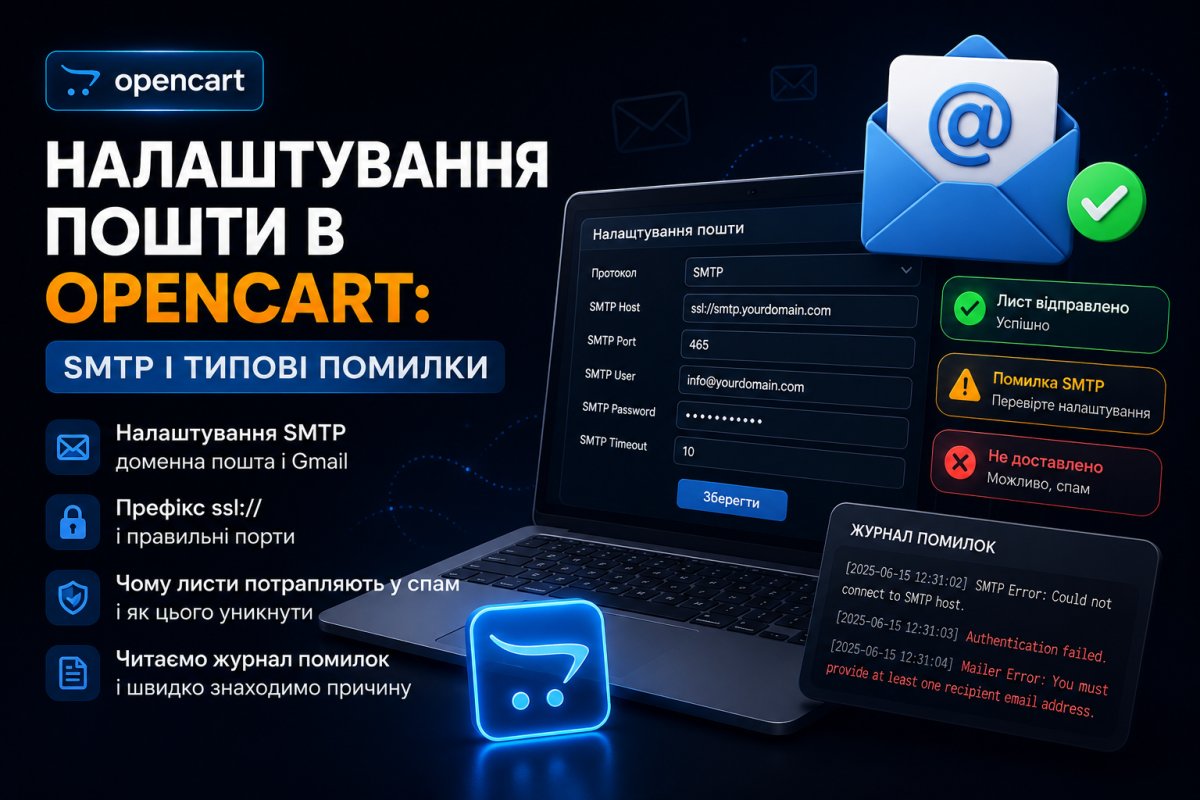
The best option for a store is a mailbox on your own domain, like [email protected]. It either already comes with your hosting plan, or is created in the control panel in a minute. The parameters for OpenCart look like this:
Mail Engine:    SMTP
SMTP Host:      ssl://mail.vashdomen.ua
SMTP Login:     shop@vashdomen.ua
SMTP Password:  mailbox password
SMTP Port:      465
SMTP Timeout:   5
The trick is in the ssl:// prefix. OpenCart can't figure out on its own that the connection is encrypted: it opens a socket exactly as written in the host field.
The classic mistake looks like this:
Wrong: host mail.vashdomen.ua, port 465 → connection hangs, timeout in the log.
Right: host ssl://mail.vashdomen.ua, port 465 → email goes through.
Port 587 with STARTTLS in standard OpenCart works unstably: support depends on the specific 3.0.3.x build, and 2.x doesn't have it at all. Don't waste time experimenting, the ssl:// + 465 combination works the same everywhere. Don't even try port 25: most hostings and ISPs block it for outgoing connections, it's an old measure against spam bots.
Login is always written in full, with the domain. shop instead of [email protected] is the second most common cause of the "Password not accepted from server" error, right after a simple typo in the password.
Setting up SMTP: Gmail
An option to start with, if you don't have domain email yet. But since 2022, Google doesn't accept regular account passwords from third-party programs, and OpenCart is exactly such a program for it. You need an app password: enable two-step verification in your Google account, then in the security section create an "App Password". You'll get 16 characters — that's exactly what you enter in the password field:
SMTP Host:    ssl://smtp.gmail.com
SMTP Login:   youremail@gmail.com
SMTP Password:  app password (16 characters)
SMTP Port:    465
Now honestly about the limitations, because there are two and both are significant. First: limit of about 500 emails per day for a regular account. Enough for a startup store, not enough for a store with mass mailings. Second is more annoying: Gmail forcibly inserts the account address in the "From" field, no matter what's in the store settings. The customer receives an order confirmation from [email protected], which doesn't add confidence in the store. So Gmail is a temporary solution for the first few weeks, nothing more.
Emails are sent but go to spam
The most common complaint after switching to SMTP: technically everything works, but emails still end up in "Spam". The reason is almost always a discrepancy between who sends and whose name the email is signed with.
Check three things in order.
First: the store's E-Mail on the "Store" tab must match the mailbox through which SMTP goes. You're sending through [email protected], but "From" shows [email protected] — to mail filters this looks like sender spoofing, and the email is punished immediately.
Second: SPF record in your domain's DNS. It's a TXT record that tells the world which servers are allowed to send email on behalf of your domain. For mail on hosting it's usually already configured or added with one button in the control panel; typical format is v=spf1 +a +mx ~all. You can check for its existence with any online tool like mxtoolbox: enter your domain and immediately see if the record exists and what's in it.
Third: DKIM, cryptographic signing of emails. In most control panels it's enabled with one toggle in the email domain settings. After SPF and DKIM it makes sense to add a DMARC record too, at least in soft mode p=none: Gmail has been getting stricter with domains without it since 2024.
Sounds like a lot of work, but in practice it's twenty minutes once. And those very twenty minutes are what separate a store whose emails people read from a store whose emails no one ever sees.
How to diagnose when it doesn't work
OpenCart writes email errors to the log: System → Maintenance → Error Log, physically it's the file system/storage/logs/error.log. The quickest way to generate a test email without placing an order is the contact form on the "Contact Us" page or customer password recovery.
Typical log entries and what they mean:
Error: Password not accepted from server! — wrong password, login without domain, or Gmail password used instead of app password.
Error: MAIL not accepted from server! — server refused to accept the sender address. Most often the store's E-Mail doesn't match the SMTP account.
Timeout or empty hang on send — connection wasn't established. Check the ssl:// prefix in the host and that the port is 465. If that doesn't help, the hosting firewall might be cutting the port: one support request usually closes the issue.
Separate tricky case: log is clean, store reports success, but there are no emails. This is almost always Mail mode, discussed above. The function reported "sent", sendmail buried the email. Switch to SMTP and the problem vanishes.
Who OpenCart's built-in SMTP won't be enough for
For honesty's sake: OpenCart's standard mechanism sends emails synchronously, right during checkout. If the SMTP server responds slowly, the buyer watches a spinner for those seconds after hitting "Confirm Order". For a store with dozens of orders a day this is unnoticeable. For a store sending thousands of transactional emails, or wanting nice delivery and open analytics, it makes more sense to look at specialized services (SendPulse, Mailgun and similar) via an appropriate module. But that's a different scale of problem; for most Ukrainian stores, a domain mailbox over SMTP fully solves the issue.
Checklist
- Create a mailbox on your own domain like
[email protected]. - In admin: System → Settings → Email, engine SMTP.
- Host with prefix:
ssl://mail.vashdomen.ua, port 465, login in full with domain. - Check the store's E-Mail on the "Store" tab against the SMTP account — they must match.
- Enter manager addresses in additional notifications and check the box for orders.
- Check SPF and DKIM records in DNS, add DMARC at least with
p=none. - Send a test email through the contact form to Gmail and Outlook, check the "Spam" folder in both.
- Look at the Error Log: after the test it should be empty.