Images in OpenCart: sizes, file names and folder structure
A typical story: an OpenCart store has been running for two years, there are about three thousand products, and one day the owner runs a speed check. The homepage loads in six seconds, PageSpeed is flashing red, first recommendation: "Optimize images". You open image/catalog via FTP, and there's IMG_20250412_153207.jpg at six megabytes, "Product Photo No. 3 (new).jpg" in Cyrillic with spaces and brackets, and everything is piled up in one folder together with banners, logos and photos from a two-year-old promotion.
Cleaning up such a mess after the fact costs many times more than uploading photos correctly from the start. Because the file name is embedded in the paths in the database (tables oc_product_image, oc_product, oc_category), and bulk renaming without updating the database will simply disconnect the images from the products. So it's better to implement the rules below before the catalog grows.
How OpenCart actually works with images
To make the recommendations not look like dogma, first about the mechanics. You upload the original through the image manager in the admin, and it goes into the image/catalog folder. On the storefront, however, not the original is shown: OpenCart through the system/library/image.php library (GD under the hood) generates reduced copies for each location in the template and stores them in image/cache. So next to your wine-merlot.jpg in the cache appear wine-merlot-500x500.jpg, wine-merlot-228x228.jpg and so on, for each size specified in the theme settings.
This leads to two things. First: the original is opened only once, at the moment of cache generation, then ready copies are served. Second: the path to the original is stored in the database as text, and any "cosmetics" with file names on disk without synchronous database updates results in empty squares instead of photos.
What size should I choose for the original
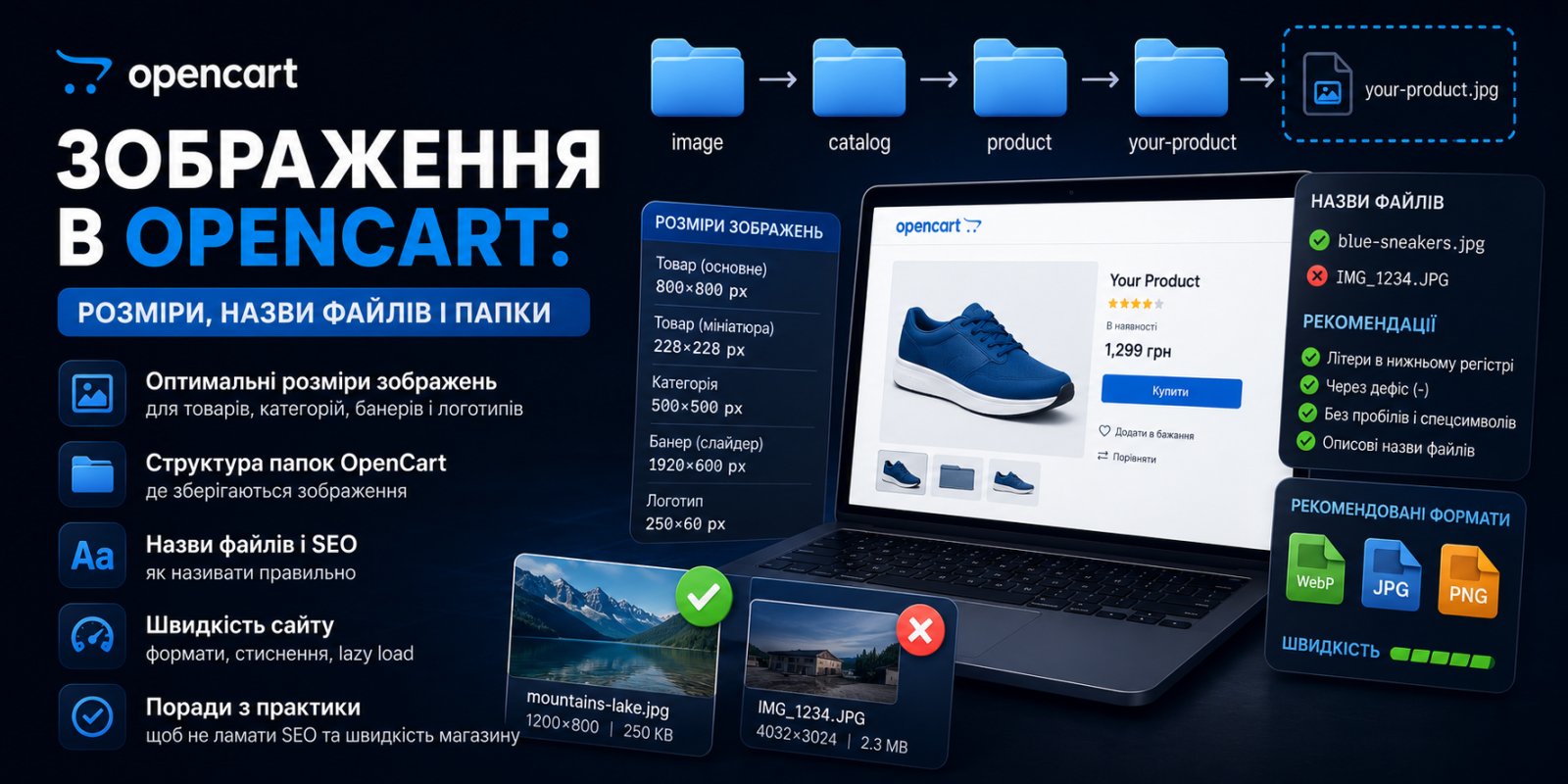
For the main product image, use 800x800 or 1000x1000 pixels. This is enough for both the product card and zooming on click (lightbox) and adaptive layout on retina screens. The format is better square: OpenCart fits the image into the specified proportions and fills it with white space, so when part of the photo is vertical and part is horizontal, the category looks like a fence made of different boards.
Why not upload originals at 4000–5000 pixels "as a backup"? Because resizing through GD consumes memory in proportion to the image area, not file weight. On a budget hosting with memory_limit 128M, cache generation from such an original crashes, error.log spills "Allowed memory size of 134217728 bytes exhausted", and the visitor sees a broken image. The symptom is recognizable: half of the photo in the category is there, the other half is not, and exactly on the heaviest files.
The sizes of cached copies are set in the admin. In OpenCart 3.x this is Design → Themes → edit theme, there are fields like "Product image size", "Product list image size", "Additional images". In OpenCart 2.x those same fields live in System → Settings → edit store, tab "Images". After changing sizes, the cache needs to be cleared: in 3.x this is a gear on the dashboard and the image cache refresh button, or manually delete the contents of image/cache (except index.html). Old copies don't regenerate on their own, and this is a classic reason why "I changed the size and nothing changed".
File weight and format
Size in pixels and weight in megabytes are different things, and the latter affects speed no less. Photos straight from a phone weigh 4–8 MB, while a decent JPEG 1000x1000 after compression fits into 100–200 KB without noticeable quality loss. Running it through Squoosh or TinyPNG before uploading takes seconds, and the savings in traffic work for years.
As for formats, it's simple: JPEG for product photos, PNG where transparency is needed (logos, icons). With WebP there's a nuance: standard OpenCart 2.x and 3.x don't generate it on their own, the cache is created in the same format as the original. But in the templates OCTemplates WebP generation is already built-in: you upload a regular JPEG or PNG, and the storefront serves the browser lighter WebP copies without separate modules and server edits. On the default theme you'll have to install an extension or configure conversion at the server level to get the same result.
File and folder names: Latin characters only
Here the rule is ironclad. In folder names and file names use only lowercase Latin characters, numbers, hyphens and underscores. That's it. No Cyrillic, no spaces, no brackets, no characters like №, %, +.
This is not pedantry, but saved hours of debugging. Here's what breaks with each of the forbidden options:
Cyrillic. In URLs it gets encoded, and the neat "chervone-vyno.jpg" becomes
%D1%87%D0%B5%D1%80%D0%B... Such links get cut off in emails and messengers, and when moving a store between servers with different file system locales, file names can get damaged even at the archive extraction stage. I've seen backups where after tar on another server, half of the Cyrillic names turned into question marks, and the images had to be recovered manually.
Spaces. In URLs they become %20, and some parsers, old feed export systems and third-party integrations that you give image links to stumble on this.
Uppercase letters. Linux is case-sensitive: Photo.jpg and photo.jpg are two different files for it. Typical scenario: the store was developed locally on Windows where case is irrelevant, everything worked. Moved to a production Linux hosting and a third of the images return 404 because the path in the database is with an uppercase letter and the file on disk is lowercase. Agree once: everything lowercase, and this class of problems disappears.
Hyphen or underscore
Both characters are allowed, but their role is different. For separating words in a name, use a hyphen: search engines treat it as a separator, so chervone-vyno-2024.jpg is read as three separate words. Underscore glues words together, so chervone_vyno_2024.jpg is closer to one incomprehensible word for a search engine. Use underscore for technical suffixes where appropriate: banner_main.jpg, logo_footer.png.
The name should be short but informative. A good scheme: product name in transliteration plus a unique identifier (article number or ID from the database) so files don't overwrite each other in case of name matches.
Incorrect:
Фото товару №3 (нове).jpg
IMG_20250412_153207.jpg
Красное вино 2024 КОПИЯ.jpg
Correct:
chervone-vyno-merlot-2024.jpg
vyno-merlot-0-75l-art-4521.jpg
banner-sale-summer.jpg
The first variant from the "incorrect" ones also tells the search engine nothing about the content, the second is a typical trace of uploading straight from the phone. A file name is one of the signals for image search, and throwing it away as "IMG_2025..." is just wasteful.
Folder structure: don't throw everything in one folder
The second half of organization is folders. The image manager in OpenCart when opening a folder loads thumbnails of all files in it. While there are three hundred files, this is unnoticeable. When there are five thousand of them in one image/catalog, the image selection window opens for half a minute, and every product edit becomes a wait.
Organize according to catalog logic. A working example of structure:
image/catalog/
├── products/
│   ├── wine/
│   ├── cognac/
│   └── accessories/
├── categories/
├── manufacturers/
├── banners/
└── blog/
You can divide by categories, by brands or by year of receipt, the main thing is that the logic is uniform throughout the catalog and there aren't thousands of files gathered in one folder. Folder names follow the same rules as files: Latin characters, lowercase, no spaces. Remember that the folder name also becomes part of the image URL.
And separately: don't rename or move files already connected to products via FTP. The path in the database won't update by itself. If restructuring is needed, do it along with updating the paths in the oc_product_image and oc_product tables (image field), after taking a database backup.
What this gives for SEO
Image search brings live traffic, especially in visual niches: clothing, furniture, decor. OpenCart gives you a basis here, but not everything. Alt text in the default theme is substituted from the product name, there's no separate field for alt of additional images in the standard admin, that's an engine limitation. Image sitemap "out of the box" isn't generated either. So the file name remains one of the few signals you control without modules, and it's not worth neglecting it.
Plus neat names work for you beyond search: in feeds for marketplaces and price aggregators, in downloads for advertising, when syncing with accounting systems. Everywhere a photo link goes to an external system, "IMG with brackets and Cyrillic" sooner or later causes problems.
What to do if the catalog is already cluttered
If the store has been running for more than a year and there's already chaos in image/catalog, don't rush to rename everything at once. First an audit. You can find the heaviest files with one SSH command:
find image/catalog -type f -size +1M -exec ls -lh {} \; | sort -k5 -rh | head -50
It will show the top 50 files over a megabyte. Usually you can already see the culprits here: a dozen "raw" photos from a camera that carry half the weight of the catalog on themselves. They can be recompressed without renaming, the path in the database won't change, and the weight will drop several times. Clear the cache after replacing originals, otherwise the storefront will show old copies.
The second part of the audit: orphan files that lie on disk but aren't connected to any product. They don't slow down the storefront, but they bloat backups and clutter the image manager. It's verified by comparing the contents of image/catalog with paths in the image fields of oc_product, oc_product_image, oc_category, oc_manufacturer tables. Doing this manually is tedious, so either a script or one of the ready-made extensions for cleaning unused images from the OpenCart marketplace.
But bulk renaming of Cyrillic files should be left for the extreme case when there's no other way: for example, before moving to another server. It's done with a script that transliterates the file name and immediately updates the corresponding row in the database, both operations in one go. And only after a complete backup of files and database. Half-hearted renaming, when the disk is already new but the database is still old, lays down all the store's images together.
Checklist
- Main product photo: square 800x800 or 1000x1000 pixels.
- JPEG weight after compression: approximately up to 200 KB, compress before uploading.
- In file and folder names only: lowercase Latin characters, numbers, hyphens, underscores.
- Hyphens for separating words, underscores for technical suffixes.
- Name scheme: product-name-in-transliteration plus article number or ID.
- Folders by catalog structure, without thousands of files in one folder.
- After changing sizes in theme settings: clear the image cache.
- No renaming of connected files via FTP without updating paths in the database.
- Before bulk operations with images: backup image/catalog and database.