If you buy goods in dollars or euros but sell in hryvnia, you know this routine: the exchange rate changes, and you have to recalculate prices again. Manually, through Excel, or by re-importing the price list. On a large catalog this means hours of work and guaranteed errors, while lagging behind the exchange rate eats away your margin.
The "Multicurrency Products" module solves exactly this task. You set the product price in the purchase currency, and the module converts it into hryvnia at the NBU rate or at your own rate and writes the result into the standard price field. So filters, sorting, promotions, discounts, and third-party modules continue to work as usual: for them, it is simply a price in hryvnia.
General Settings
The first tab is minimal: enable the module, connect the purchase price, and choose how to round the conversion result. It's worth setting up rounding right away, otherwise after conversion you'll get prices like 1 847,36 UAH.
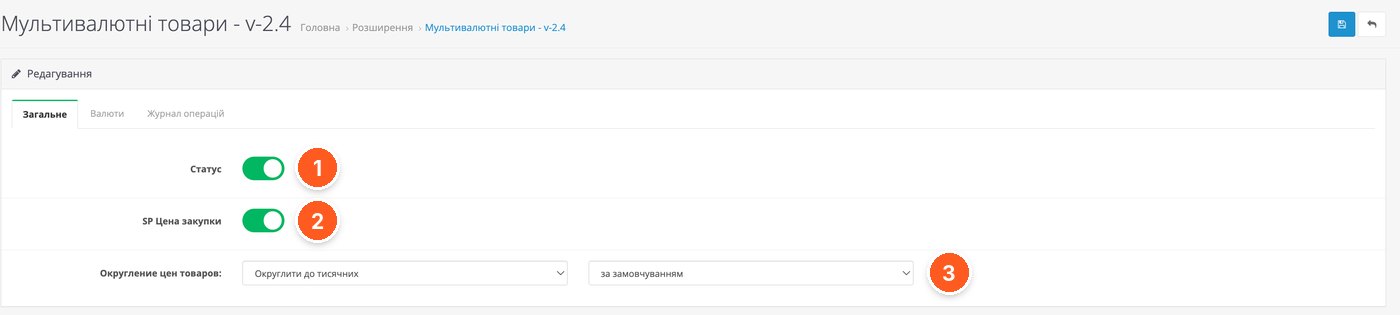
- Status. Enables the module.
- SP Purchase Price. Integration with the free SP Purchase Price extension: the purchase price can also be specified in a currency, and the module will convert it into hryvnia. This way you see the real cost price and margin.
- Product price rounding. The rounding precision and method used for prices after conversion.
Currencies and Exchange Rates
The "Currencies" tab gathers all currencies the module works with. For each one you can see the official NBU rate, your own rate, the update date, and the date of the NBU rate. This is the main screen you'll visit when the rate has shifted.

- Official rate. The NBU rate, which the module receives automatically.
- Custom rate. The rate you set: a commercial rate or one with a built-in markup.
- NBU exchange date. The date the official rate was taken for, so you can immediately see whether it is current.
- Action buttons. Adding a currency and, judging by the icons, running price recalculation and rate updates. Recalculating all products takes one click.
Settings for a Specific Currency
In the currency form, you choose which rate to use for calculating prices. If you work with a supplier at their commercial rate, you enter your own and do not enable the official one. If the NBU rate is sufficient, you turn on the corresponding switch and no longer have to think about the rate.
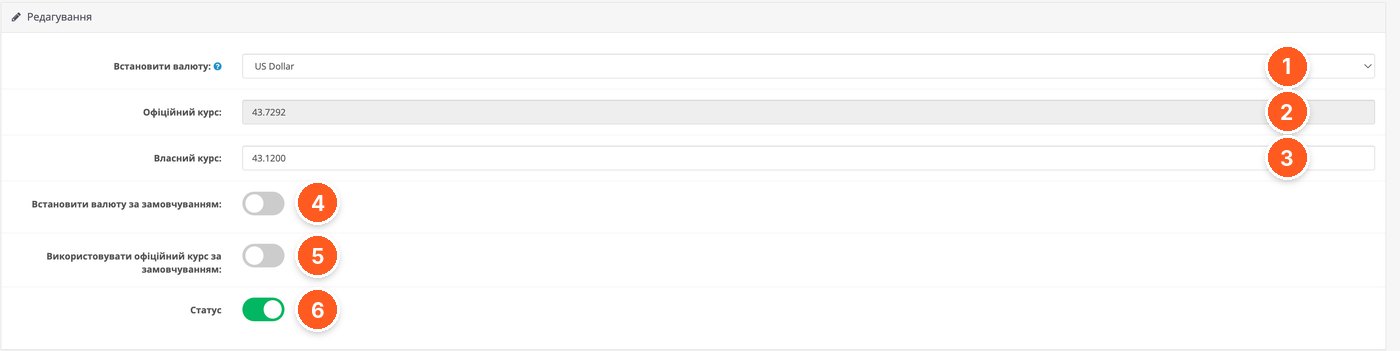
- Set currency. Selecting a currency from the store's currency list.
- Official rate. The current NBU rate, read-only.
- Custom rate. Your rate for recalculation.
- Set as default currency. Makes this currency the default currency in the module.
- Use official rate by default. Switch between the NBU rate and your custom rate.
- Status. Enables or disables the currency.
Operations Log
A useful detail that similar solutions often lack: the recalculation log. You can see who changed the rate and when, which rate was used for calculation, and how many items were updated. If prices look strange after an update, the cause is easy to find here.
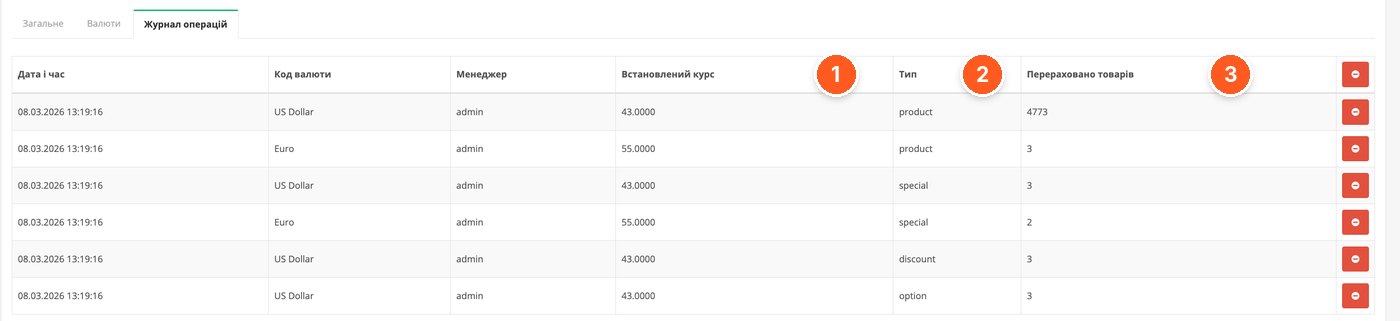
- Set rate. The rate used for the recalculation.
- Type. What exactly was recalculated: main product prices (product), specials (special), discounts (discount), options (option).
- Products recalculated. The number of updated items. The screenshot shows the recalculation of 4773 products in one operation.
Currency Price in the Product Card
The product card gets fields for the price in a currency. You enter the amount in dollars or euros, select the currency, and the hryvnia price fills in automatically. The rate used for the product is shown next to it.

- Currency price. The selling price in the chosen currency.
- Rate. The currency rate used to calculate the hryvnia price.
- Currency purchase price. The purchase price in currency, works together with SP Purchase Price.
- Currency. The currency of this product: different products can have different currencies.
Currency Price for Options
It is also nice that the module did not forget about options. If a size or configuration changes the price, the surcharge can also be set in a currency, and it will be recalculated along with the main price.
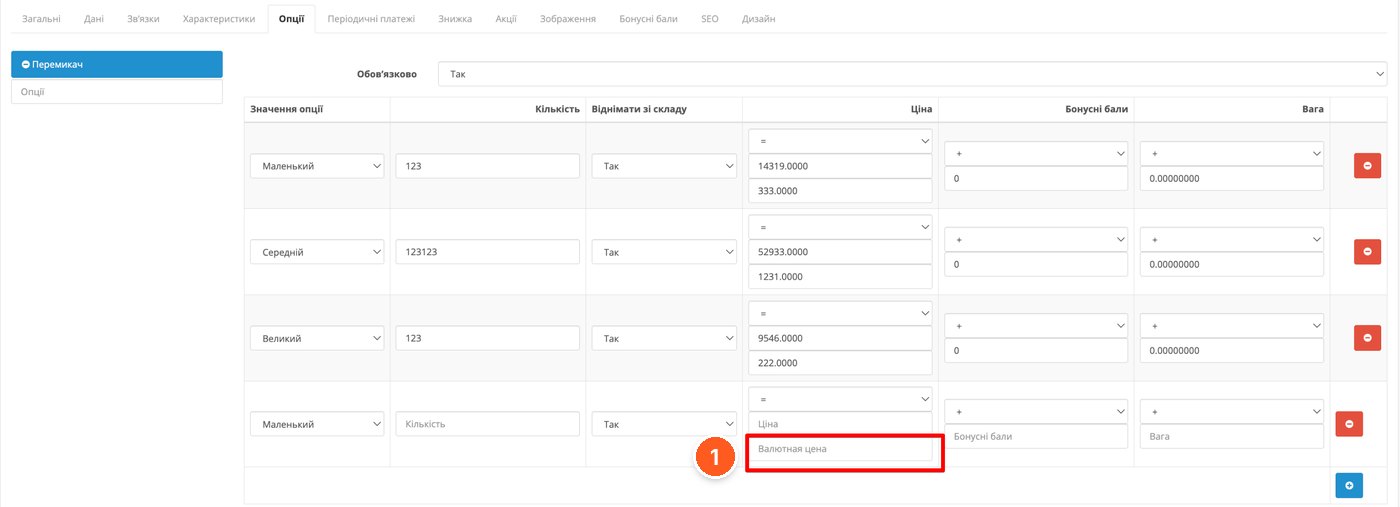
- Option currency price. The surcharge for the option value in the product's currency.
What to Consider Before Buying
The module works with OpenCart 3.0.x and ocStore 3.x, PHP from 7.1 to 8.4. ionCube Loader is required, activation is automatic, and the license is for one domain. The module contacts the developer's server, but if it is unavailable, it continues to work.
The module writes the calculated price into the standard price field. This is an advantage for compatibility, but keep in mind: if you change the hryvnia price manually or through import, the next recalculation will most likely overwrite it. Decide what is the source of truth for products with a currency price.
The admin screenshots show module version 2.4, while the module page lists the current version as 3.0.1, so the interface may differ slightly. For the purchase price in currency, the separate free SP Purchase Price extension is required.
If your prices are updated from supplier price lists, see also the review of the automatic price list processing module.
Who It Suits
Stores with imported goods and suppliers in USD or EUR, where prices have to be recalculated after every exchange rate movement. Especially large catalogs: recalculating thousands of items in one click and the operations log really save time here.
If all your purchases are in hryvnia and prices come ready from the supplier's price list, you don't need this module. It is also unnecessary if you want to show customers prices in several currencies on the storefront: OpenCart has a standard currency switcher for this, while this module handles pricing in the admin.
"Multicurrency Products" by Yevhenii Lysenko on the OpenCart Code marketplace. Questions about setup can be asked to the developer directly on the module page.