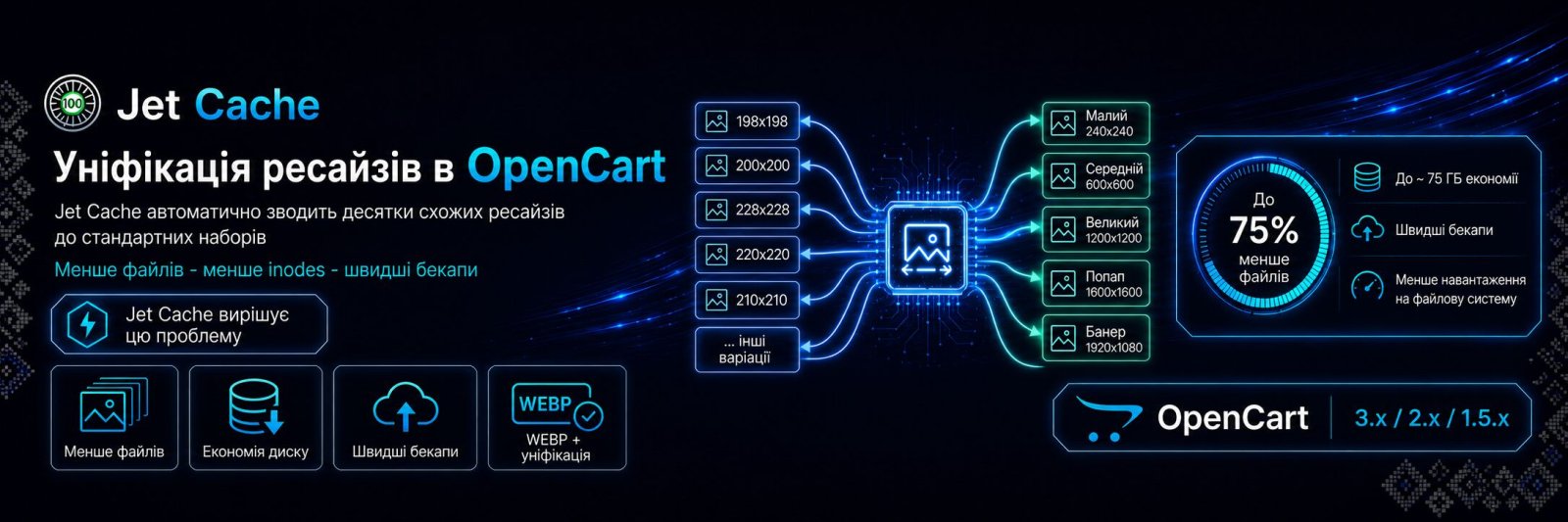
What is resize unification?
Jet Cache automatically converts all image creation requests from the original image - resizes - to a limited number of standard size sets.
Instead of dozens of similar variants, for example 198x198, 200x200, 228x228, which are almost identical in size, the closest available size set that you add will be used.
Why do so many different image sizes appear?
In OpenCart, the theme has its own image size settings. For example, a 200x200 thumbnail may be used for category images. But many third-party modules ignore these settings and generate their own resizes.
For example, instead of the configured 200x200 thumbnail, a module may generate its own 228x228 version. As a result, dozens of unnecessary size sets are created. They duplicate the same purpose and only fill up the disk.
What size sets are available?
Any sizes you define, for example:
- Small
- Medium
- Large
- Popup
- Banner
- ...
Is it necessary to fill in all fields?
No. The filled-in sizes form the available sets. If, for example, only 4 fields are filled in, unification will work only with these 4 sets.
Why was this feature added?
- reduces the number of generated resize files
- saves disk space and inodes
- reduces load on the file system
- speeds up backups
How much can be saved?
On average, each product has 10-30 resized images.
The following numbers are approximate.
With 100,000 products, this means 1-3 million files, or inodes.
- Without unification: around 2,000,000 images
- With unification using 6 sets: around 400,000-500,000 images
- Savings: up to 75% fewer files
With an average file size of 50 KB, the savings for 100,000 products are about:
around 75 GB of disk space.
And this does not include the set of compressed WEBP resizes.
Where can I find the settings?
In the Jet Cache module, in the Images tab, under the Resizes and Unification subtab.